How to knit from a PDF pattern on a phone or tablet
Most patterns arrive as a PDF. Knitting from one on a screen saves paper and keeps the pattern with you, as long as you have a way to keep your place.
Print it or use a screen?
Paper is easy to scribble on and never runs out of battery. A screen is always with you, zooms in on small print and does not get lost in the knitting bag. Plenty of knitters do both: print the page they are on, and keep the full pattern on their phone.
Setting up the PDF
- Save it somewhere you can open without signal, not only in an email.
- Use a PDF app that lets you highlight and add notes, so you can mark your size and tick off rows.
- Mark your size first. In a multi-size pattern, highlight every number for your size before you cast on.
- Stop the screen going dark mid-row by lengthening the auto-lock time in your device's display settings while you knit.
Keeping your place on a screen
The hard part of a PDF is finding your place again. The page scrolls, the zoom resets, and the row you were on is somewhere in a block of text. Highlight each line as you finish it, or add a note where you stopped, before you put the knitting down.
Keeping your patterns together
Keep every pattern in one folder, named so you can find it, such as the designer and the pattern name. Patterns you buy on Ravelry stay in your Ravelry library, so you can download them again.
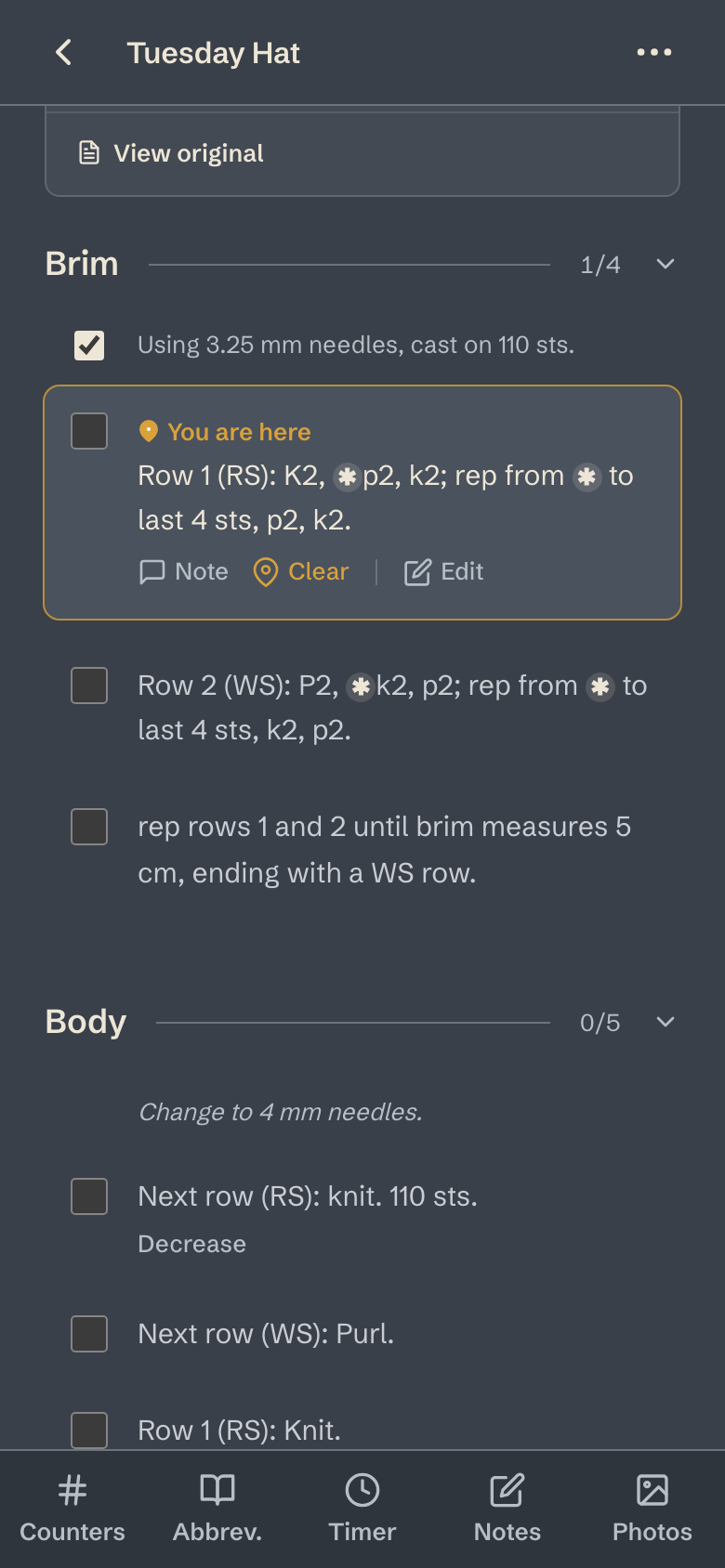
With The Knitting App
Upload the PDF, a photo of a printed page or a Google Docs link, and it becomes sections and rows in your size that you tick off as you go. Your place is saved with every tick, on your phone, tablet and computer, and the original PDF is one tap away under the pattern's title. If you use Ravelry, you can bring in patterns from your Ravelry library.